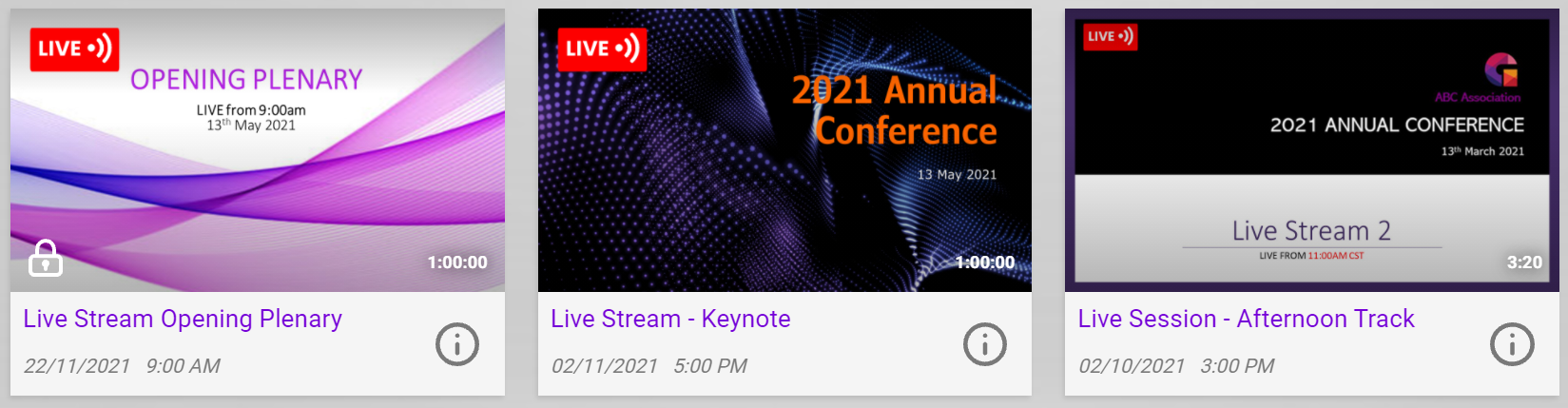
Overview
In this article you will learn how to style video cards that appear on your homepage and channel pages.
- Font color for Title and Descriptions
- Background Color of Video Card and Information cards
- Animation option for users when they drag their cursor over the video card
- Video Card Templates
- Video Metadata displayed on your video card
Set Video Card Colors on the Video Library
Use the settings below to set the video card style options that will appear on your main video library. These will be the default colors across your video site, although can be overwritten on each channel if you wish to style channels and events differently.
- Navigate to Layout > Video Library >Video Library Layout tab
- Click on the Video Cards menu
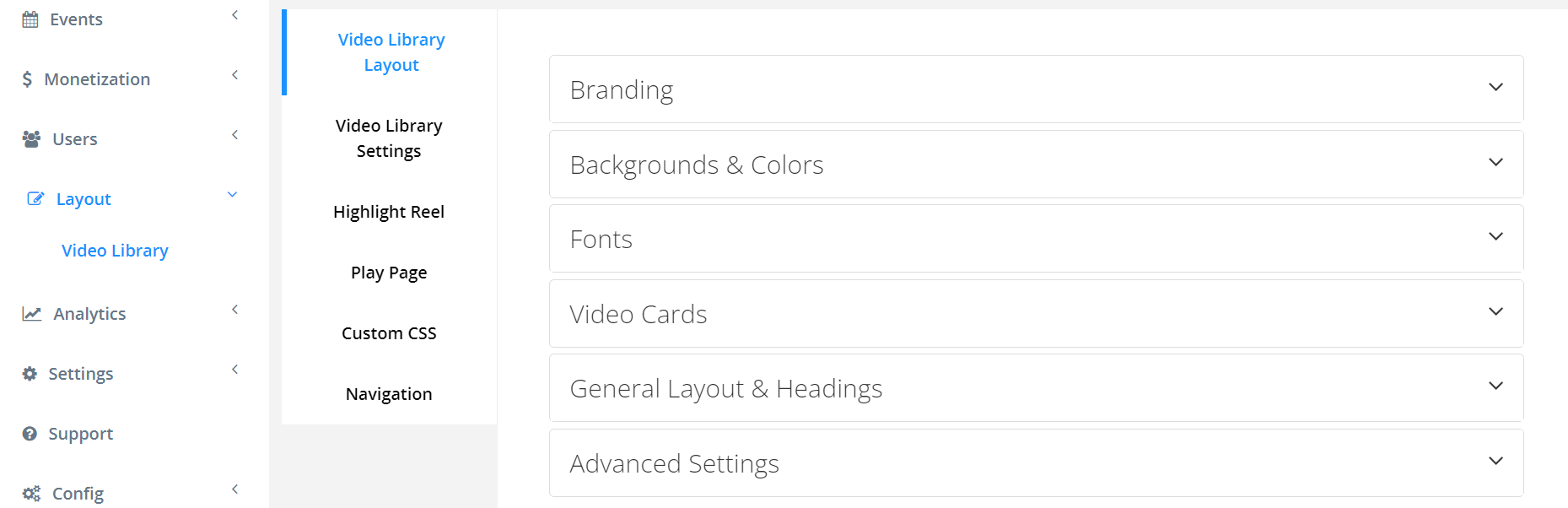
- Select or Set the Hex Color for each of the following Video Card settings:
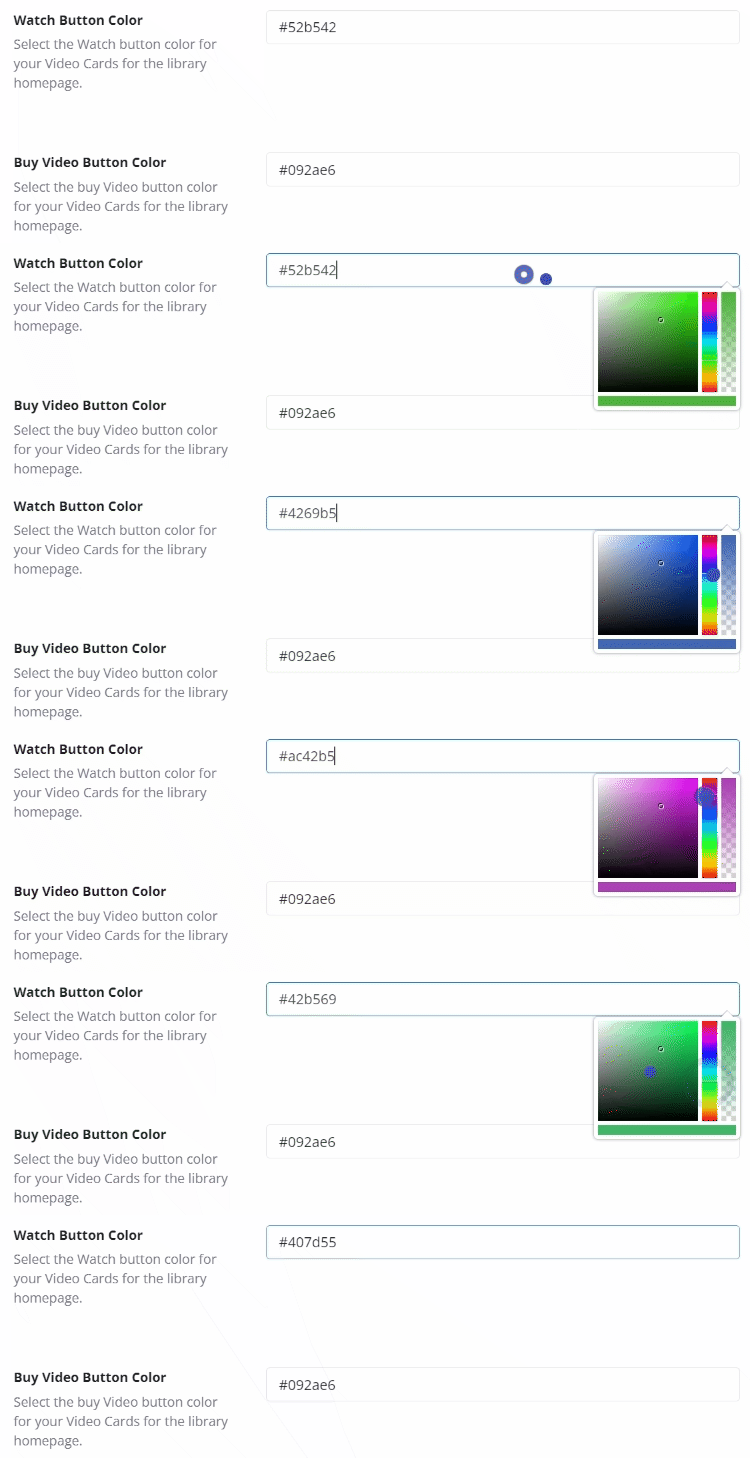
- Watch Now Button Color: The color that will appear when the viewer can watch the video

- Buy Video Button Color: The button color when the video needs to be purchased by the viewer
- View Cart Button Color: The button color when the video has been added to shopping cart
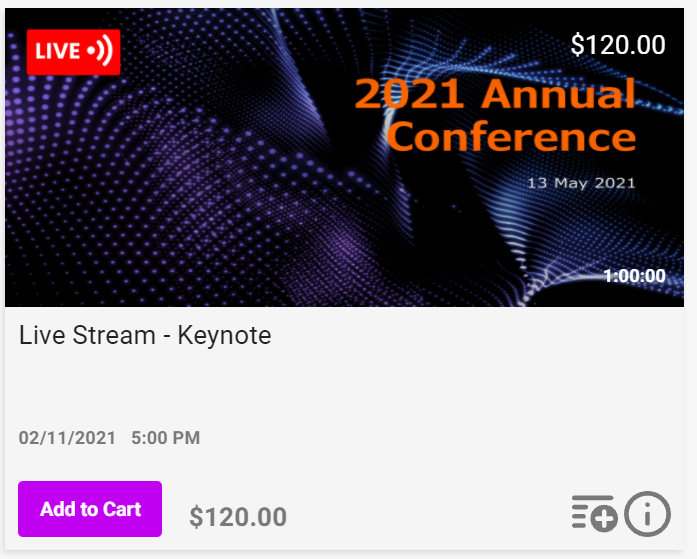
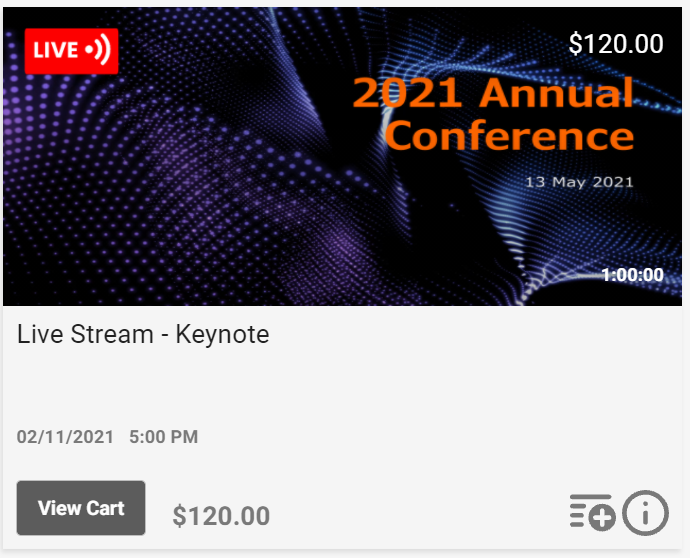
- Video Card Background Color: the background color for the video card
- Video Card Info Background: the color when the Info icon is selected and the video description overlay appears ontop of the video card
- Main Text Color: The font color for the video title.
- Secondary Text Color: The font color for the video descriptions, pricing and action icons.


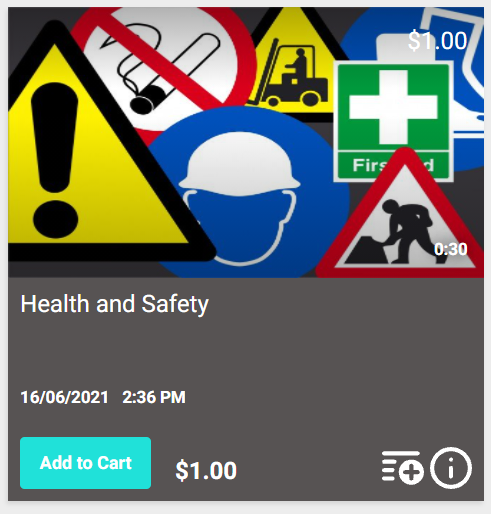
- Watch Now Button Color: The color that will appear when the viewer can watch the video
Set Video Card Type on the Video Library
On each channel, you can set the Video Card Type for your video library homepage.
- In Admin >Video Channel >Channels >Edit >Channel Info tab
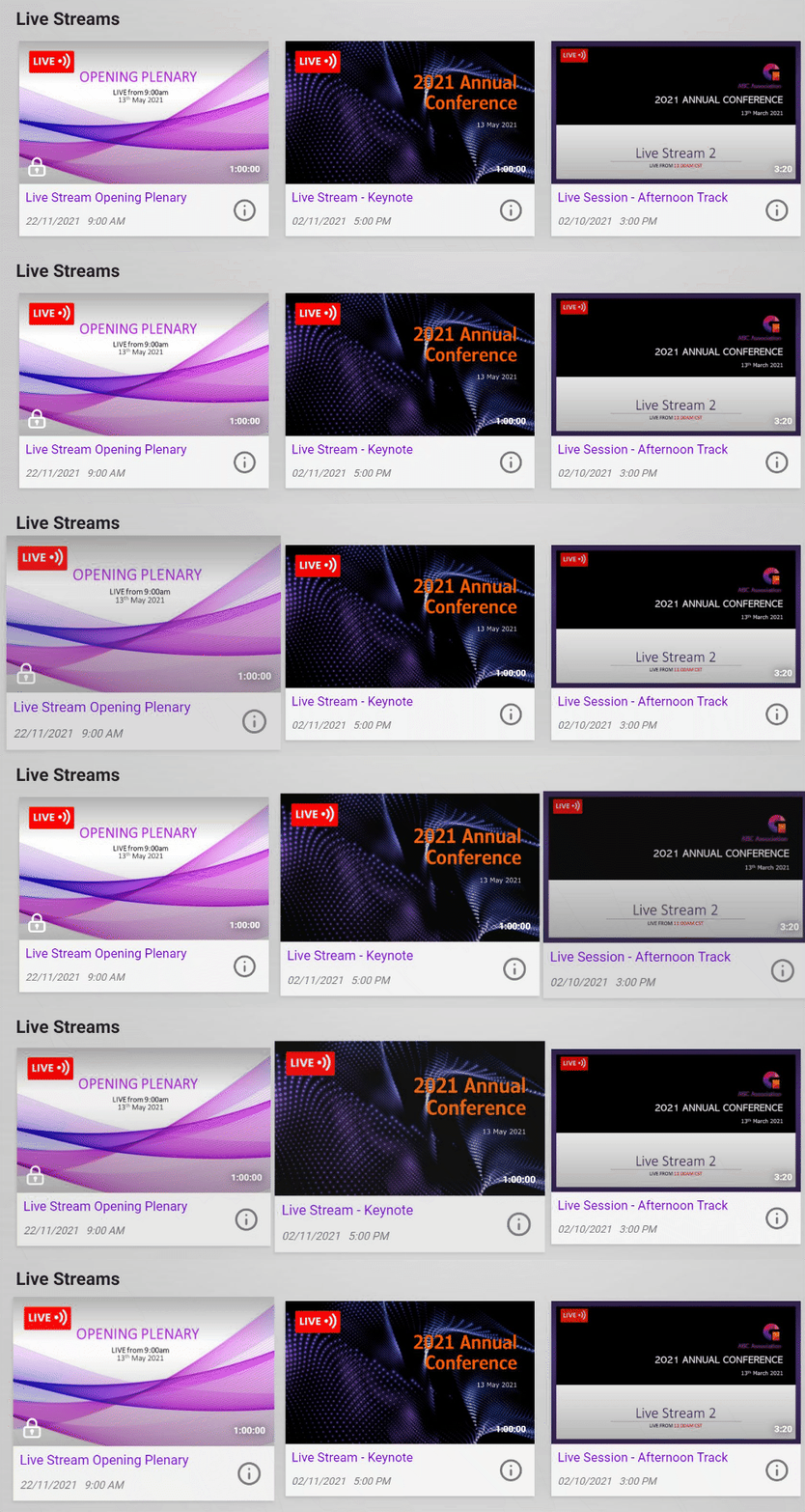
- Home Card Type: There are two options Default and Minimalist.
- Animate Video Card: This will initiate a hover effect on the video card when the users positions the covers over the video card.
Minimalist Video Card with Animate:
Set Video Card Styles on a Channel:
All of the above styles can be overwritten on each channel page.
- In Video Channel >Channels >Select the channel you wish to style
- Edit Channel >Select Channel Style tab
- Select Video Card & Font Colors menu
- This will allow you to overwrite some or all of the default colors for your video cards
- Select Display Settings menu
- Update Channel Card Type and Animate Video Card on the channel page
- Save to apply settings to your channel
Video Card Examples:
Default Video Card with grey background, and different button colors:
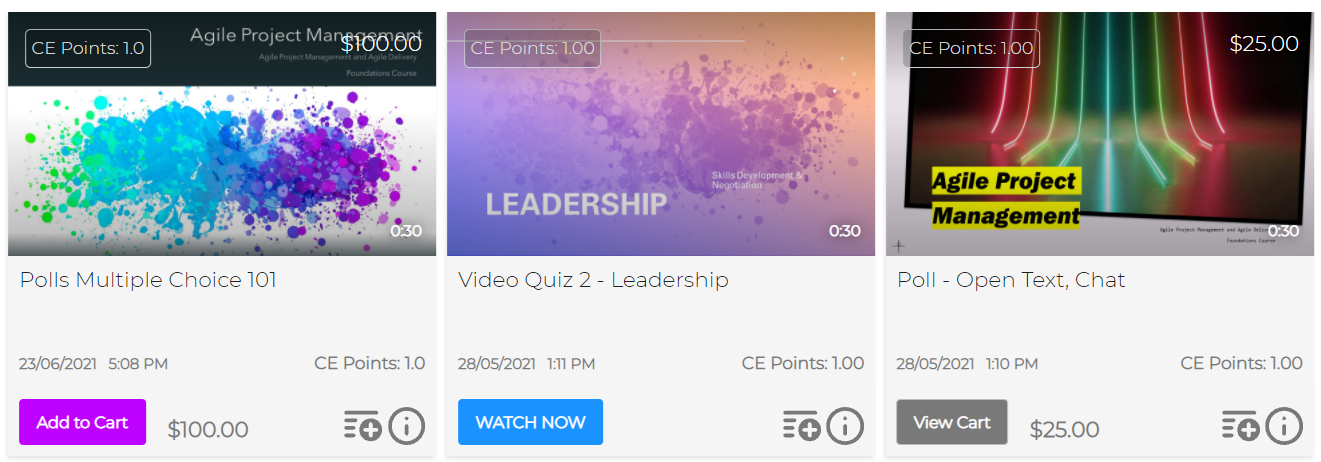
Default Video Card with Black background, white text and different button colors: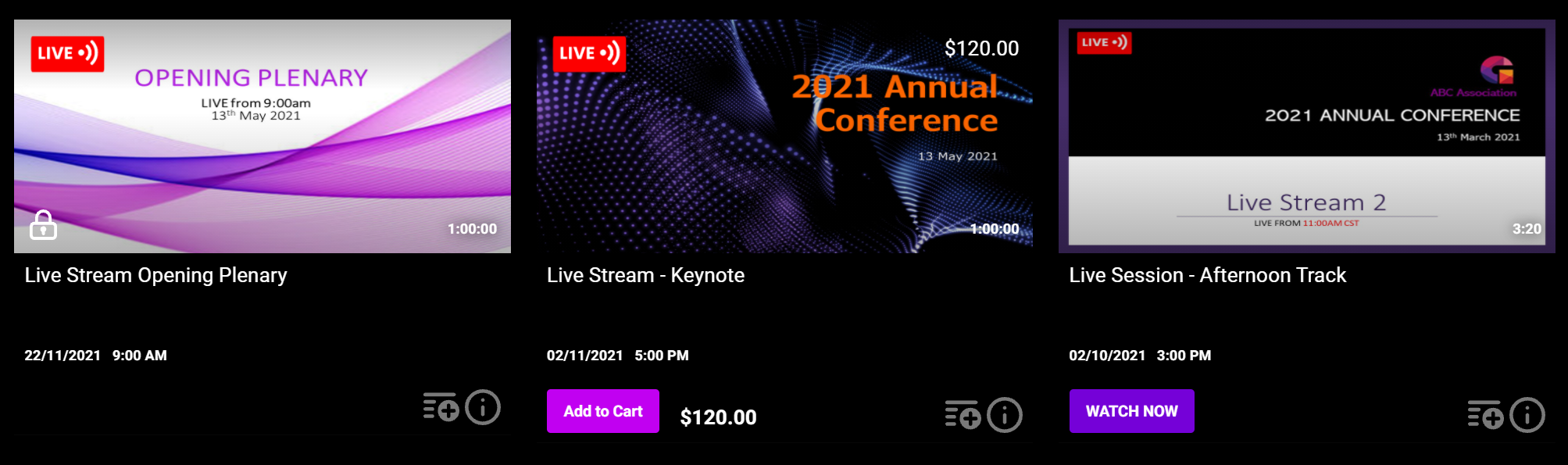
Minimalist Video Card with black background and white fonts: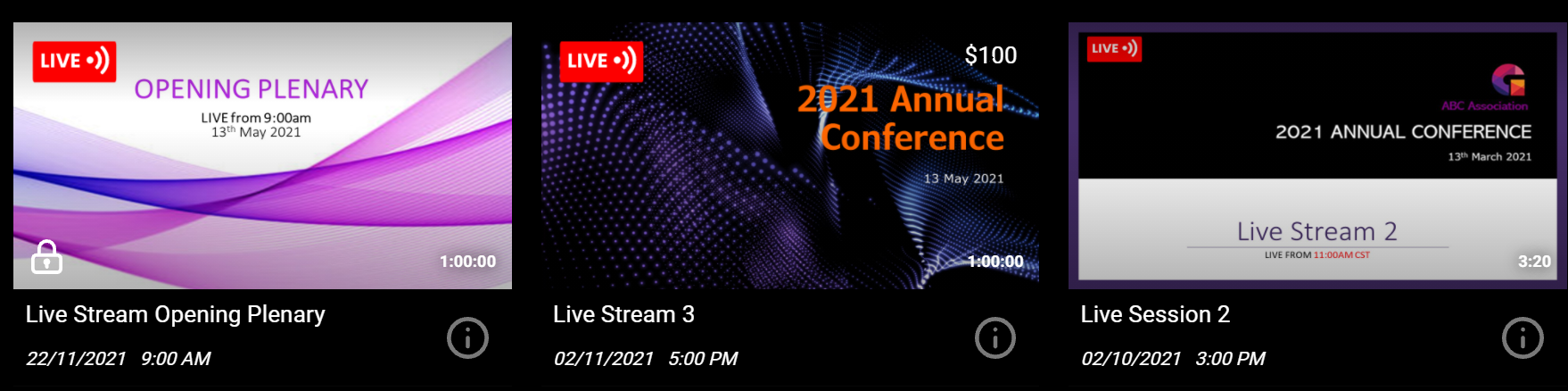
Minimalist Video Card with light grey background and purple main text font: