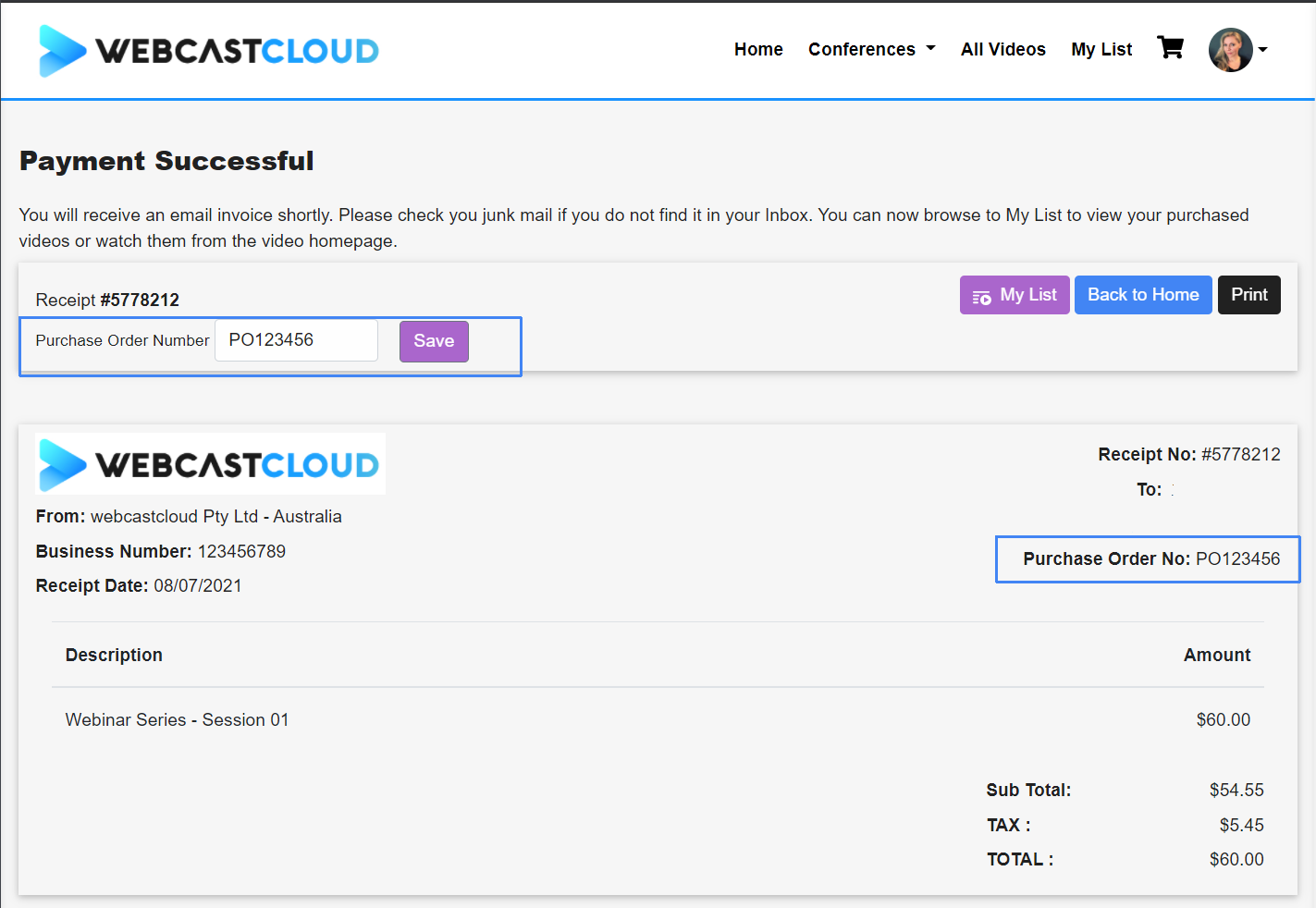
Some organizations would like the ability for their members to be able to add a Purchase Order to their invoice for a video, channel or event that has been purchased.
The following steps will demonstrate how to enable the Purchase Order setting and how a member can add the PO Number to their invoice.
Your site should already have User Profiles menu turned on for Members.
Turn On Purchase Order Setting
- In webcastcloud Admin, browse to Settings >eCommerce
- Enable Allow Purchase Order on Invoice

Add PO Number to your Invoice
When a Member is logged into your video site, then can now follow these steps to add a PO Number to an invoice. These steps can be completed once content has been purchased.
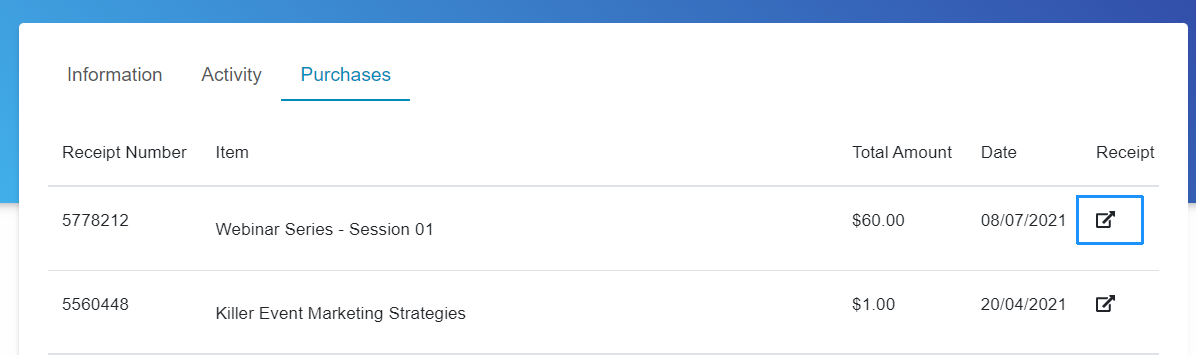
- From the User Profile menu, the member can select Purchases
- Select the Receipt Launch icon
- On the Receipt, member can Input the PO Number
- Select Save
- The Purchase order will now be on the Receipt.
The member can Print their invoice again from the Print button.
The PO Number will be stored against this receipt for future reference.