This guide explains how to broadcast a live event from Microsoft Teams to Webcastcloud using RTMP.
This setup allows you to:
- Use Teams as your production environment (presenters, screen share, etc.)
- Deliver the stream through Webcastcloud for branded viewing, monetisation, and audience engagement.
Before You Start
Make sure you have:
- A Webcastcloud Streaming Software Live Stream created.
- Your RTMP URL and Stream Key from Webcastcloud.
- Access to Teams Live Events or Town Hall (RTMP output required).
Step 1: Create Your Live Stream in Webcastcloud
- Log in to Webcastcloud admin portal.
- Go to Library > Content > Add New.
- Click Live Stream > Streaming Software > Fill out streaming details > Save.
After your livestream is created, you'll want to save the following details:
- Click on the Media Info tab:
- Click Live Studio
-
Click the Info icon in the top right:
- Copy RTMP Server URL
- Copy Stream Key
You’ll use these in Microsoft Teams.
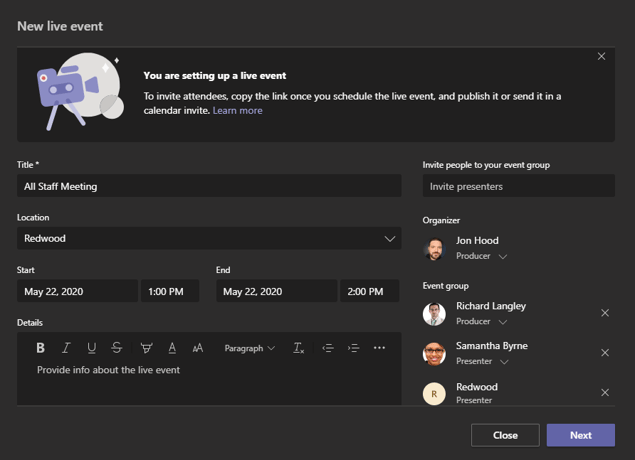
Step 2: Schedule a Teams Live Event / Town Hall
In Microsoft Teams:
- Go to Calendar
- Click the arrow next to New
- Select:
- Town Hall (recommended) or
- Live Event (legacy option)
- Enter event details (title, presenters, etc.)
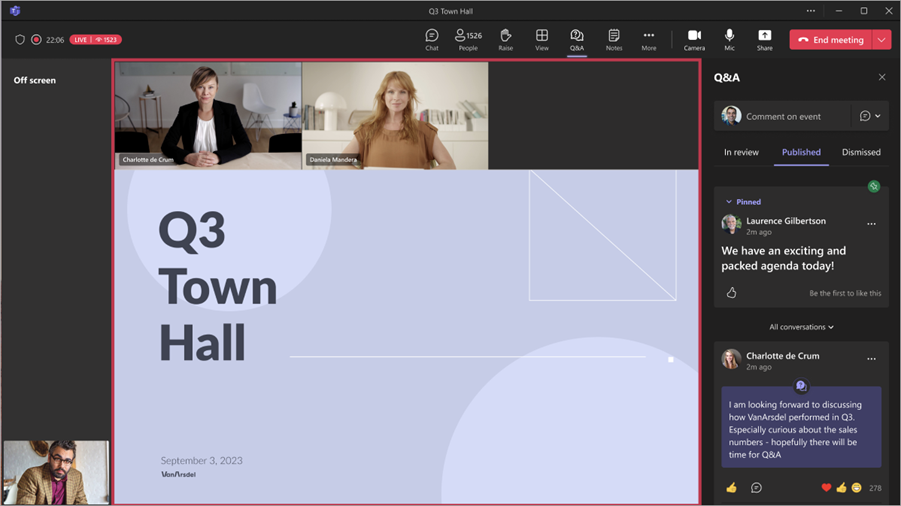
Step 3: Enable RTMP Output in Teams
When setting up the event:
- Go to Event Settings
- Enable:
- External app or device (RTMP output)
Once enabled, Teams will provide:
- RTMP Server URL
- Stream Key
You will replace these with Webcastcloud’s RTMP details
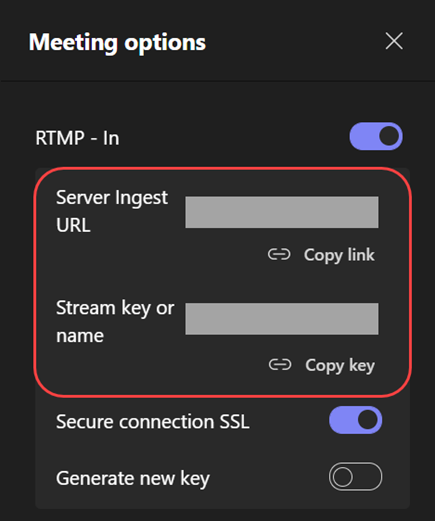
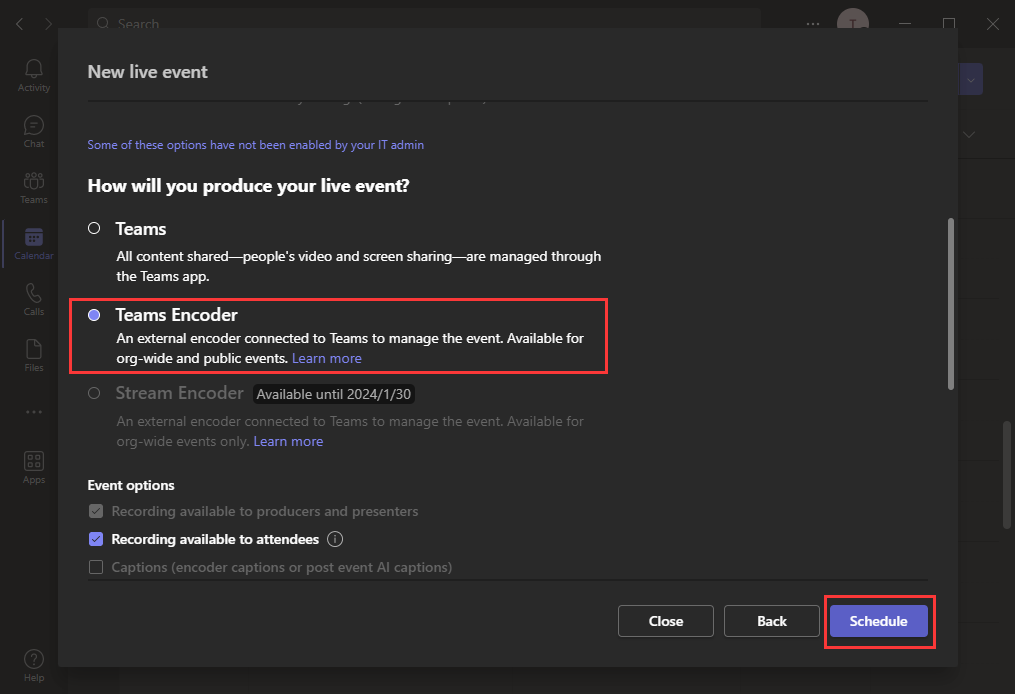
Step 4: Configure RTMP Output to Webcastcloud
In the Teams RTMP settings:
- RTMP Server URL → Paste from Webcastcloud
- Stream Key → Paste from Webcastcloud
Save your event.
Step 5: Start the Stream
- From Live Studio (In Webcastcloud)
- Click Prepare to Go Live
- You will see the Go Live button once the livestream server is running.
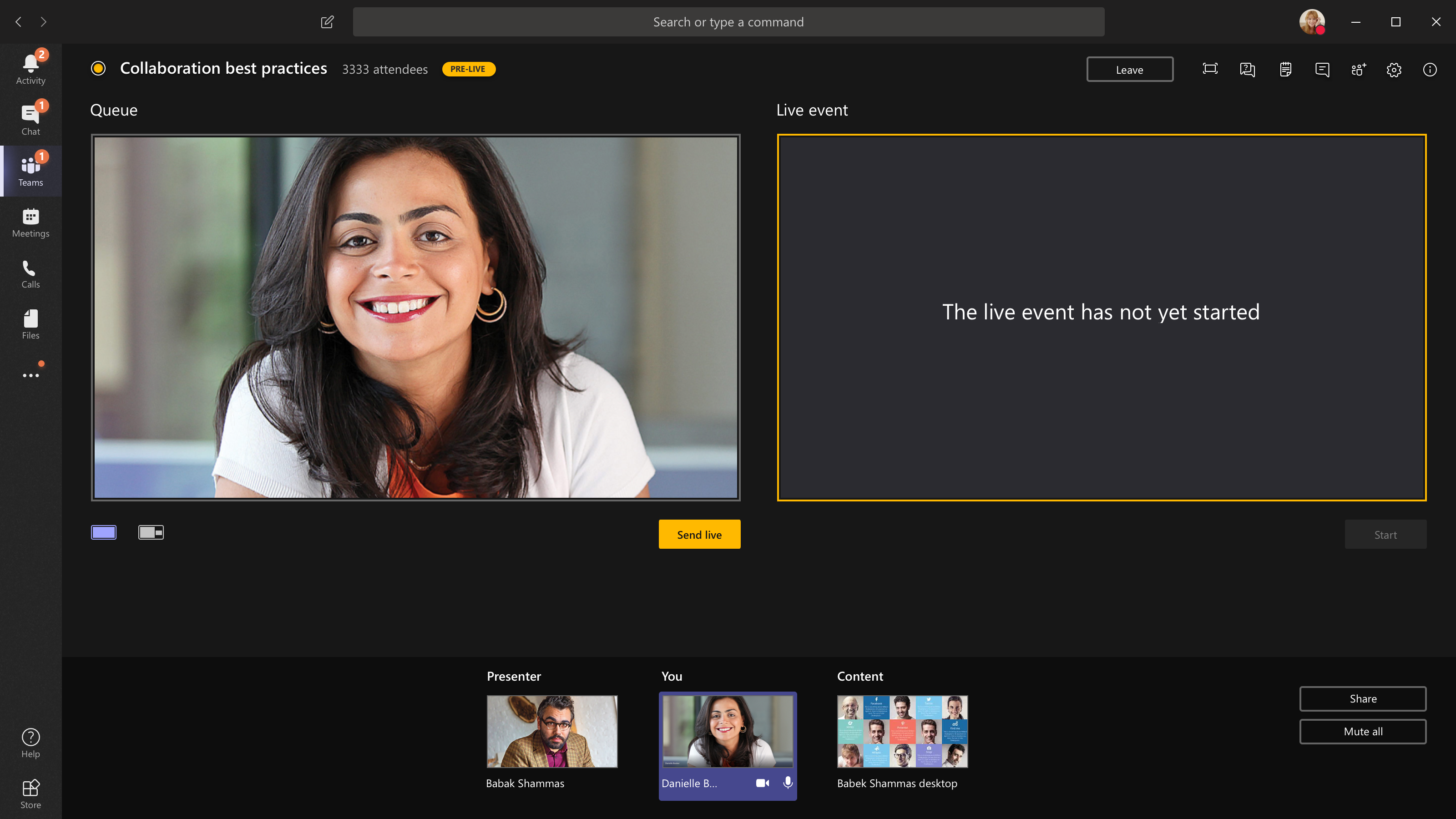
Now do the following from teams:
- Join the event as a presenter
- Click Start Event
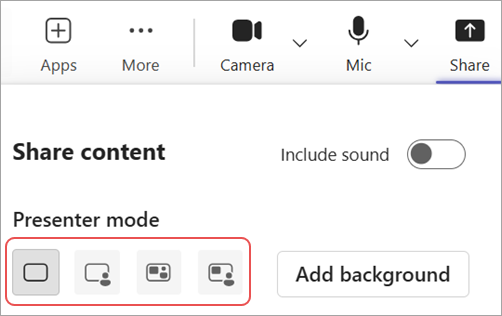
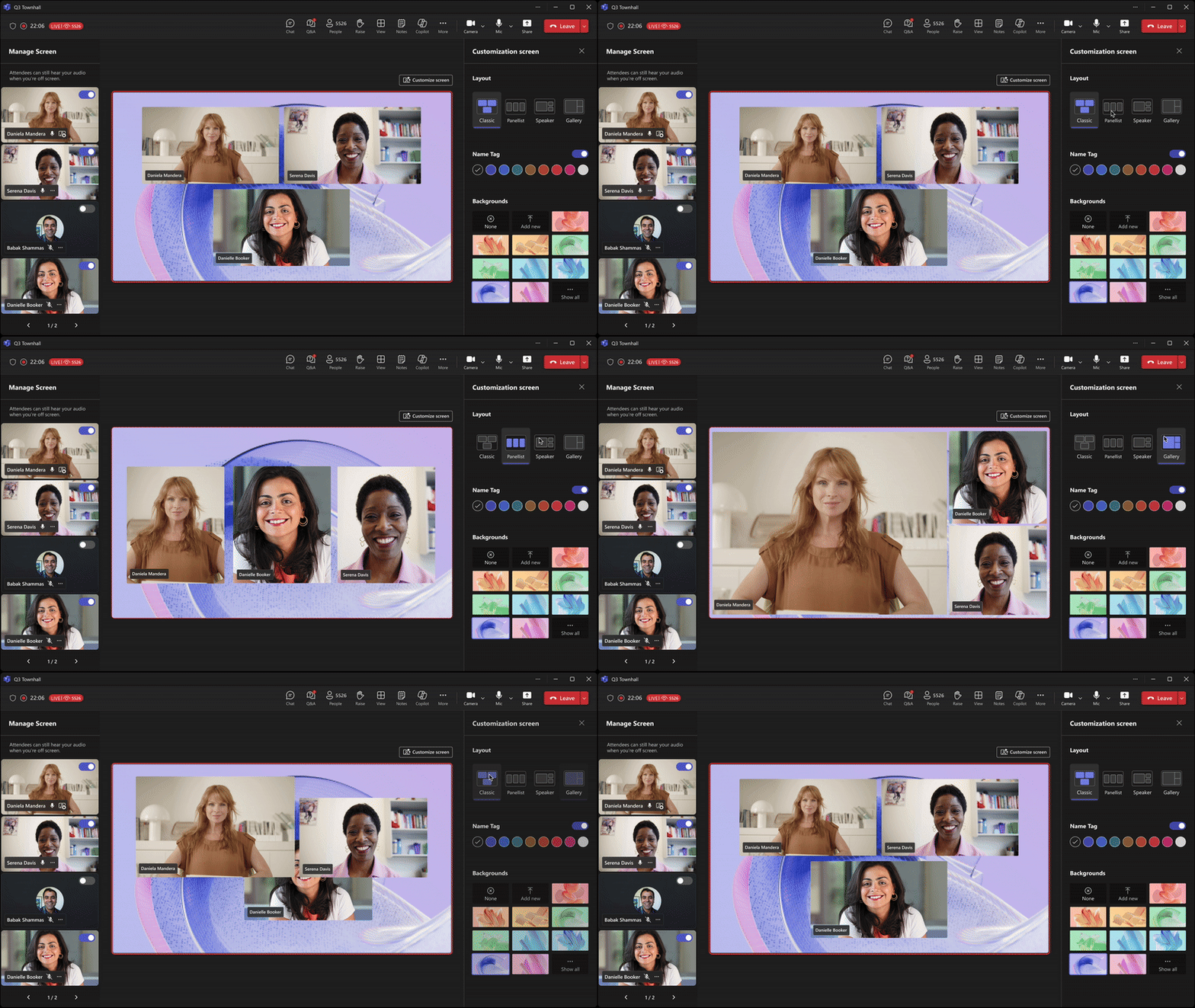
- Begin your presentation (camera, screen share, etc.)
In Webcastcloud:
- Confirm the stream is being received
- Once you're happy with the livestream preview click Go Live to begin streaming to your audience.
Stopping the Livestream
Please refer to this article on best practices for stopping a Live Broadcast
- After Livestream has stopped in Webcastcloud you can end your Teams Meeting.
Important Notes
- Latency: Expect ~12-15 seconds depending on your setup
- Permissions: Only organisers can configure RTMP output
- Testing: Always run a test event before going live
- Browser: Use Chrome for best performance in production workflows